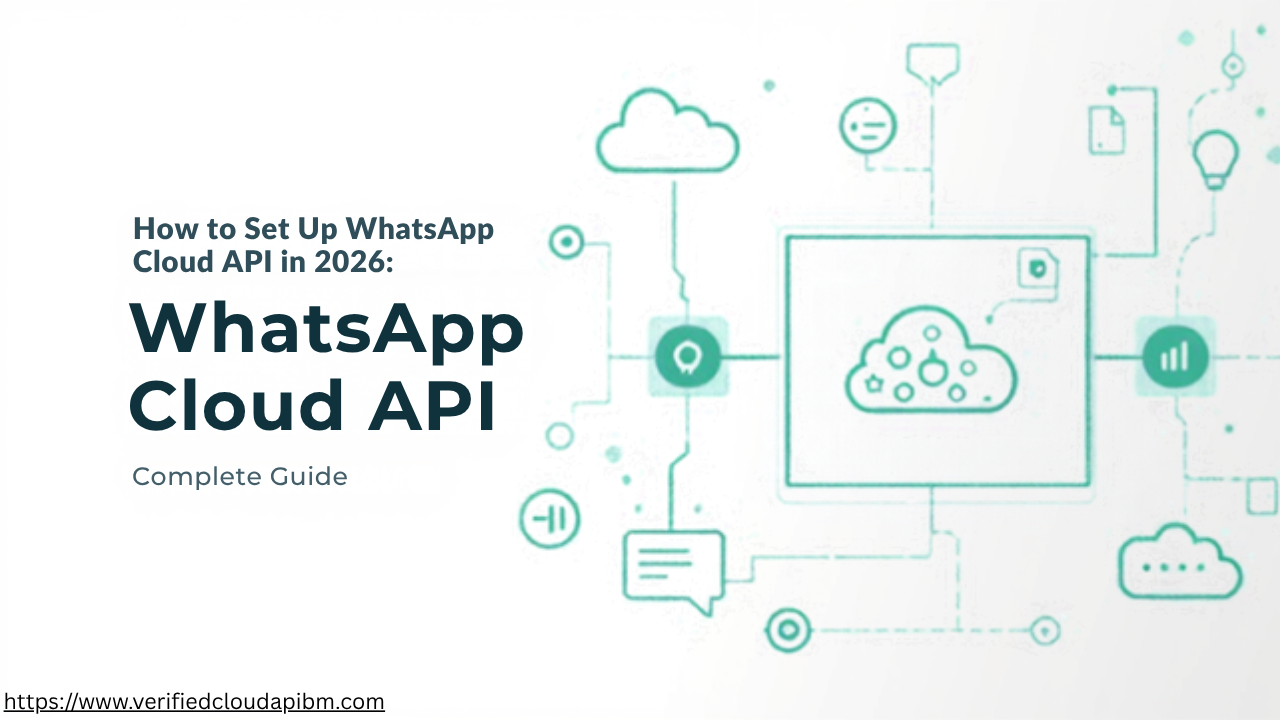
How to Set Up WhatsApp Cloud API in 2026: Complete Setup Guide
Setting up WhatsApp Cloud API can seem complicated when you first encounter Meta Business Manager, WhatsApp Business Accounts, access tokens, phone numbers, webhooks, and API requests.
The setup becomes much easier when you understand what each component does and configure everything in the correct order.
In this guide, you will learn how to set up WhatsApp Cloud API in 2026, including the requirements, Meta business setup, developer app, WhatsApp Business Account, access token, phone number, webhook configuration, API testing, common problems, CRM integration, and production considerations.
What Is WhatsApp Cloud API?
WhatsApp Cloud API is Meta's cloud-hosted solution for connecting WhatsApp Business messaging with software and business systems.
Instead of handling every conversation manually through the WhatsApp Business App, businesses can use the API to connect WhatsApp with:
- CRM systems
- Customer support platforms
- Websites
- E-commerce stores
- Chatbots
- Mobile applications
- Appointment systems
- Internal business software
This makes WhatsApp Cloud API particularly useful for businesses that need automated or software-based communication.
The WhatsApp Business App and WhatsApp Cloud API are different products. The Business App is primarily designed for manual conversations, while Cloud API is designed for programmatic messaging and software integrations.
WhatsApp Cloud API Setup Requirements
Before starting your WhatsApp Cloud API setup, prepare the following:
- A Meta account
- Access to a Meta Business Portfolio
- A Meta developer account
- A WhatsApp Business Account (WABA)
- A suitable business phone number
- Access to the required business assets
- A development environment if you are building a custom integration
- A public HTTPS endpoint if your application will receive webhook events
Depending on your account and production requirements, Meta may also require additional business information, verification, permissions, or configuration.
How to Set Up WhatsApp Cloud API in 2026
The exact Meta interface can change over time, but the general setup process follows a similar structure.
Step 1: Create or Access a Meta Business Portfolio
First, make sure you have access to the Meta business environment that will own your WhatsApp assets.
If your business already has a suitable Meta Business Portfolio, you may be able to use the existing one instead of creating another.
Make sure you have the appropriate administrator permissions before continuing.
A properly organized business environment is important because your WhatsApp Business Account, users, applications, and related assets may depend on the business configuration.
Step 2: Create a Meta Developer Account
Next, access Meta for Developers and complete the developer registration process if you have not already done so.
After registration, create an application for your business integration.
Meta can change the names and layout of application creation options, so follow the current options shown inside the developer dashboard rather than relying entirely on screenshots from older tutorials.
Step 3: Add WhatsApp to Your Application
Once your application has been created, add the WhatsApp functionality available in your Meta developer dashboard.
Depending on the current onboarding flow, Meta may provide development resources such as a test phone number, WhatsApp Business Account, Phone Number ID, and temporary credentials.
The development environment allows you to test your integration before connecting your production phone number.
Step 4: Connect Your WhatsApp Business Account
A WhatsApp Business Account, commonly called a WABA, is associated with the business messaging setup.
Connect or create the appropriate WhatsApp Business Account during the onboarding process.
Keep your account identifiers organized because they can be required later when configuring API requests, webhooks, permissions, and production access.
Step 5: Generate a WhatsApp Cloud API Access Token
An access token is used to authenticate requests sent to the WhatsApp Cloud API.
During development, Meta may provide a temporary token for testing.
For production systems, authentication should be configured using the appropriate long-term or system-user-based credentials available under Meta's current requirements.
Never place a production access token in public frontend code, public repositories, browser-side JavaScript, or other locations where unauthorized users could obtain it.
If a token is exposed, revoke or replace it according to the appropriate security procedure.
Step 6: Find Your Phone Number ID
One of the most common beginner mistakes is confusing a business phone number with the Phone Number ID used by the API.
They are not the same thing.
Your integration may need values such as:
- WhatsApp Business Account ID
- Phone Number ID
- App ID
- Access Token
Store these values securely and keep them clearly separated in your development environment.
Step 7: Add and Verify Your Business Phone Number
When you are ready to configure your business number, follow Meta's current phone-number registration and verification process.
Before using a number, check whether it is already connected to another WhatsApp product or setup.
A dedicated business number can make API management easier, particularly when WhatsApp is connected to a CRM, customer-support system, or automated workflow.
Businesses that need a dedicated number can also review the available WhatsApp numbers options.
How to Set Up WhatsApp Cloud API Webhooks
Webhooks are an important part of a complete WhatsApp Cloud API integration.
Your application can send API requests without necessarily receiving webhook events, but webhooks become essential when your system needs to react to incoming WhatsApp activity.
Depending on your configuration, webhook events can include:
- Incoming messages
- Message delivery status
- Read status
- Failed messages
- Other WhatsApp Business Platform events
Your webhook endpoint should be publicly accessible through HTTPS and configured according to Meta's current verification requirements.
Why Are WhatsApp Webhooks Important?
A common integration problem occurs when outbound messages work but incoming messages never reach the application.
This can happen because:
- The callback URL is incorrect
- Webhook verification failed
- Required webhook fields were not subscribed
- The WhatsApp Business Account was not properly connected
- The application is not processing the incoming payload correctly
For this reason, webhook testing should be part of your initial integration rather than something added after the entire system has already been built.
How to Test WhatsApp Cloud API
After completing the initial configuration, send a test API request.
A successful test helps confirm that your:
- Access token
- Phone Number ID
- API permissions
- WhatsApp Business Account
- Recipient information
- API endpoint
- Message request
are configured correctly.
However, receiving one test message does not mean the entire production integration is ready.
You should also test:
- Incoming webhook events
- Delivery status
- Error responses
- Token security
- Message templates where required
- CRM or backend integration
- Production credentials
WhatsApp Cloud API Messaging Policies
Technical setup is only one part of operating WhatsApp Cloud API.
Businesses also need to follow the applicable WhatsApp Business and messaging policies.
Depending on the conversation type and current Meta rules, businesses may need approved message templates for certain business-initiated messages. Businesses should also use appropriate customer consent practices and avoid spam or unwanted messaging.
Because Meta can update policies, limits, pricing, and eligibility requirements, always check the current official requirements before launching a production messaging workflow.
WhatsApp Cloud API Common Use Cases
Businesses can use WhatsApp Cloud API for many different workflows, including:
- Customer support
- Order confirmations
- Delivery notifications
- Appointment reminders
- OTP and authentication messages
- Lead management
- CRM automation
- Customer-service chatbots
- E-commerce notifications
- Business alerts
- Marketing communication where permitted
The appropriate implementation depends on the business workflow and the messaging rules that apply to that use case.
WhatsApp Cloud API and CRM Integration
One of the biggest advantages of an API-based WhatsApp setup is the ability to connect messaging with other business software.
For example, a CRM integration can help a business associate WhatsApp conversations with customer records, leads, support tickets, or sales workflows.
A simplified architecture can look like:
Customer → WhatsApp → Meta Cloud API → Webhook → Your Backend / CRM
When a customer sends a message, the webhook can deliver the event to your application. Your backend can then process the message and trigger the appropriate business workflow.
Businesses planning this type of setup can explore available WhatsApp Cloud API / WABA solutions when comparing implementation options.
What Is a WhatsApp Cloud API Access Token?
The access token is the credential your application uses when authenticating API requests.
During development, a temporary token can be useful for testing.
For production, businesses should use the appropriate secure authentication method and keep credentials on the server side.
Never share an access token publicly.
If you are building a custom integration, treat API credentials as sensitive configuration rather than ordinary content.
Common WhatsApp Cloud API Setup Errors
Invalid Access Token
An invalid token can result from expiration, incorrect permissions, revocation, or using the wrong credential.
Check the token and its permissions before changing other parts of the integration.
Webhook Verification Failed
Check the:
- Callback URL
- HTTPS configuration
- Verification token
- Server response
- Webhook configuration
The server must correctly respond to Meta's verification request.
Phone Number Registration Problem
A number may cause problems if it is already associated with another WhatsApp setup or does not meet the current registration requirements.
Check the number's current status before attempting registration again.
Incoming Messages Are Not Reaching Your System
If outgoing messages work but incoming messages do not, investigate your webhook configuration.
Check the callback URL, event subscriptions, WhatsApp Business Account connection, and backend event handling.
Production Integration Is Not Working
A development environment can work while production fails because production may require different credentials, permissions, business assets, billing configuration, templates, or verification.
Test the production configuration separately before connecting it to live customers.
WhatsApp Cloud API vs WhatsApp Business App
Although both are related to WhatsApp Business, they serve different purposes.
WhatsApp Business App
The Business App is generally suitable for:
- Manual conversations
- Direct customer communication
- Small-team workflows
- Basic business messaging
WhatsApp Cloud API
Cloud API is designed for:
- Software integrations
- Programmatic messaging
- CRM connections
- Automated workflows
- Customer-support systems
- Custom applications
The right option depends on what your business needs to automate or integrate.
Is WhatsApp Cloud API Free?
Access to the Cloud API platform itself does not mean that every business messaging activity is free.
Applicable WhatsApp Business Platform messaging charges and pricing rules can depend on factors such as message type, usage, and market.
Because Meta's pricing structure can change, check the current official pricing information before calculating your expected messaging costs.
Do You Need a Verified Business for WhatsApp Cloud API?
Business verification requirements can depend on the stage of setup, account configuration, and features you need.
A development setup should not automatically be treated as equivalent to a production-ready business configuration.
If your business is preparing for production use, review the current Meta requirements for business verification, account limits, and available features.
Can You Use an Existing WhatsApp Number?
It depends on the number's current configuration and the registration method you are using.
A number already connected to another WhatsApp setup may need to be migrated, disconnected, or otherwise prepared before it can be registered for Cloud API.
Always check the current Meta requirements before moving an active business number.
Is WhatsApp Cloud API Suitable for Small Businesses?
It can be useful when a small business needs software integration, automation, CRM connectivity, or automated customer communication.
However, if a business only needs basic manual conversations, the WhatsApp Business App may be simpler.
The choice should be based on the workflow rather than simply the size of the business.
WhatsApp Cloud API Setup Checklist
Before considering your setup complete, check the following:
- Meta Business Portfolio configured
- Meta developer account created
- Application created
- WhatsApp functionality added
- WhatsApp Business Account connected
- Phone Number ID available
- Business phone number configured
- Access token securely stored
- Required permissions configured
- Webhook verified
- Webhook events tested
- Test messages working
- Templates configured where applicable
- CRM/backend integration tested
- Relevant WhatsApp policies reviewed
Choosing a WhatsApp Cloud API Solution
If you do not want to build every part of the setup yourself, you can compare available WhatsApp API-related services based on your requirements.
For example, businesses with different messaging requirements may evaluate options based on the stated conversation capacity, account configuration, access requirements, and intended workflow.
For a lower-capacity option, you can compare the WhatsApp Cloud API with 250 free conversations option.
Businesses looking for a higher stated capacity can review the WhatsApp Cloud API 2K option.
For a larger stated capacity, the WhatsApp Cloud API 10K option can also be compared.
For higher-volume requirements, businesses can review the WhatsApp Cloud API 100K option.
If a rental-based workflow is more suitable, the WhatsApp Cloud API rental service is another option to review.
Final Thoughts
Learning how to set up WhatsApp Cloud API in 2026 is not simply a matter of creating a developer app and sending one test message.
A production-ready integration requires the business environment, WhatsApp Business Account, phone number, authentication, webhooks, API requests, security practices, and messaging policies to work together.
If you are building the integration yourself, test each component separately before connecting WhatsApp to your live customer workflow.
If you are comparing ready-made services, start by understanding your actual messaging requirements and then compare the relevant WhatsApp Cloud API / WABA options rather than choosing a service based only on an advertised limit.
Frequently Asked Questions
What is WhatsApp Cloud API?
WhatsApp Cloud API is Meta's cloud-hosted API for connecting WhatsApp Business messaging with software, CRM systems, websites, and automated workflows.
How do I set up WhatsApp Cloud API?
The general process is to configure your Meta business environment, create a developer application, add WhatsApp, connect a WhatsApp Business Account, configure a phone number, generate the appropriate credentials, configure webhooks, and test API messaging.
What is a WhatsApp Cloud API access token?
An access token authenticates API requests made by your application. Production credentials should be stored securely on the server side.
What is a WhatsApp Cloud API webhook?
A webhook allows your application to receive events from WhatsApp, including incoming messages and message-status events.
Can WhatsApp Cloud API connect to a CRM?
Yes. WhatsApp Cloud API can be integrated with CRM systems and custom backend applications through API requests and webhook events.
Is WhatsApp Cloud API suitable for automation?
Yes. Cloud API is designed for programmatic business messaging and can be used as part of customer support, notifications, CRM workflows, and other automation systems, subject to applicable WhatsApp policies.